A tool for camera scanning
Compare apertures,
center to corner.
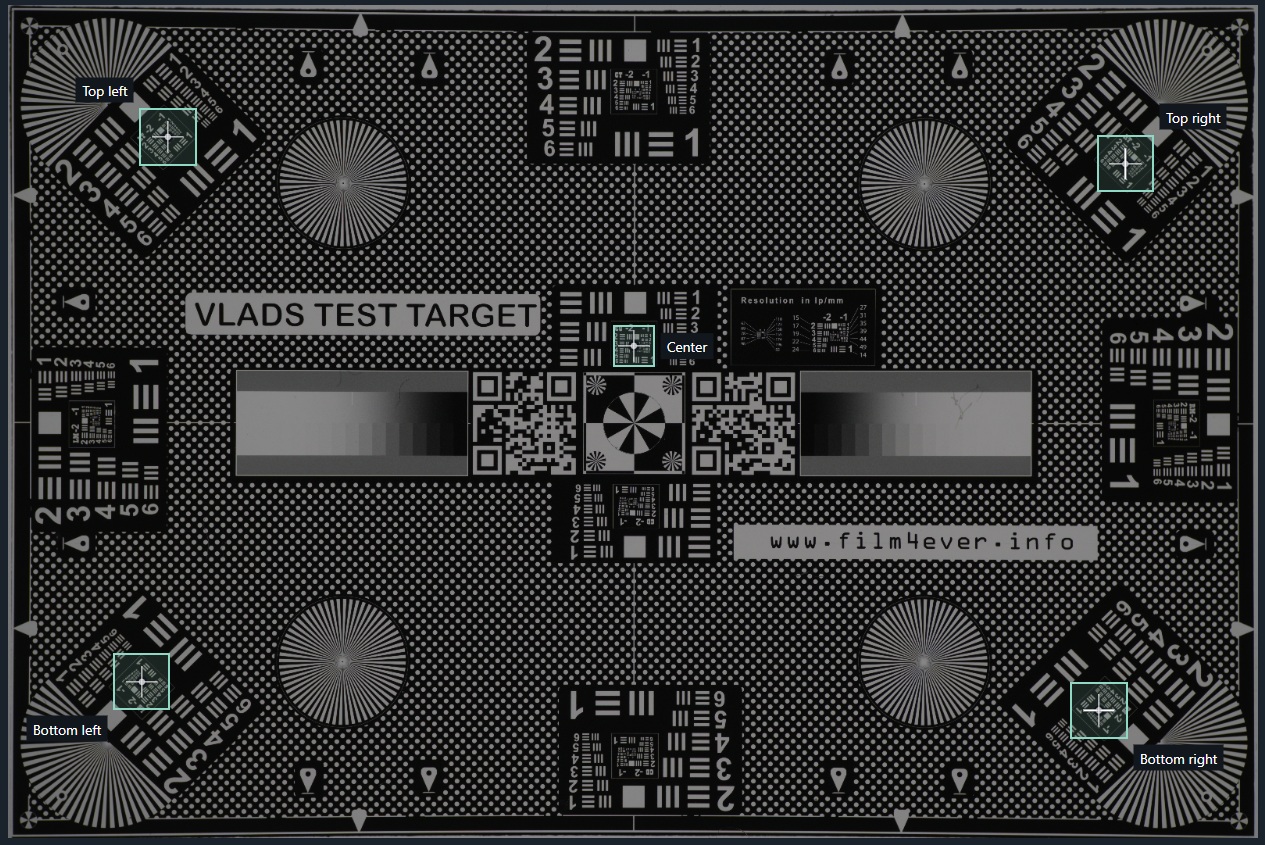
Photograph Vlad’s test target at a few f-stops. TTC lines up the center and four corners so you can see which aperture suits your setup.
Made for the fiddly part: sorting through repeated captures and comparing the same small details in each one.
Try the online demo Download TTC for WindowsPortable ZIP · Windows x64
v1.3.3 · 51.9 MB download
No Python installation. Runs on your computer.
Reading a comparison
Here, the corners favor f/5.6.
Stopping down from the maximum aperture can improve corner sharpness by reducing aberrations. In this capture series, the center scores highest at f/3.5, while all four corners and the total peak at f/5.6. That makes f/5.6 the best overall result in this example, captured with the Sigma 105mm f/2.8 DG DN Macro. Check the aligned crops and repeats before choosing an aperture for your own setup.
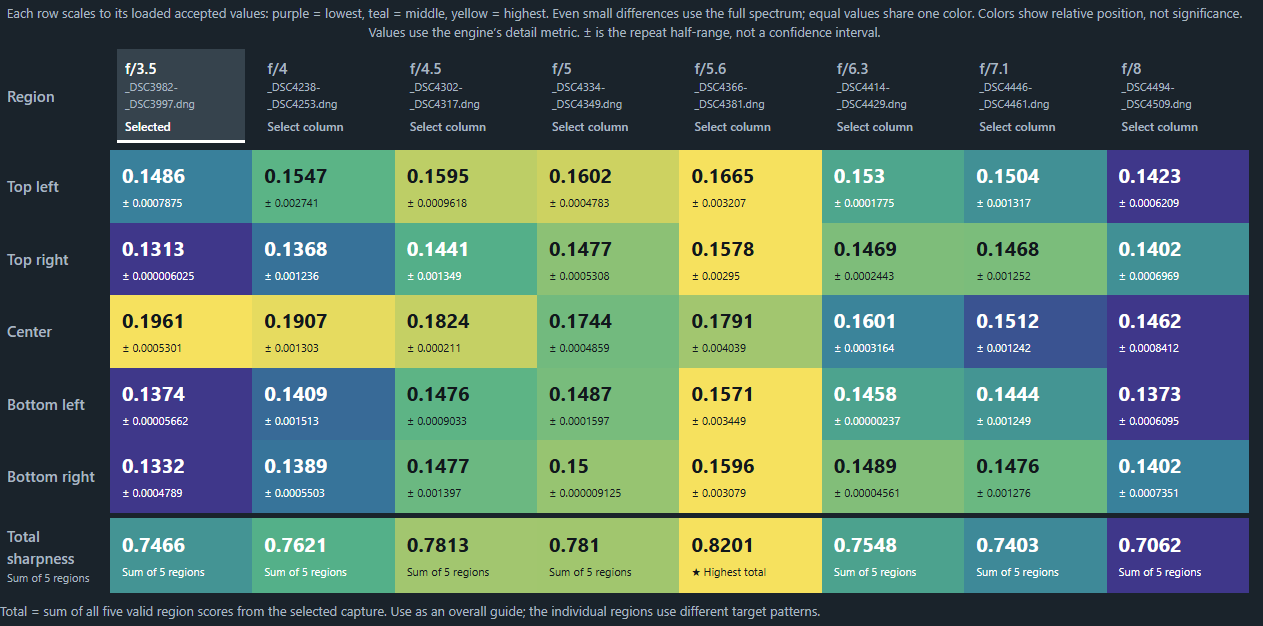
TTC measures relative detail in rendered images. The target, focus, vibration and rendering affect the result; a score alone cannot diagnose a lens or an alignment problem.
Using TTC
Open a folder of target shots.
Try the interactive demo to see the app before downloading. It uses example target images with simulated processing times and scores. The download analyzes your own captures. Downloadable builds currently support Windows x64; Linux and macOS packages are not yet available. Start with a small series to check the workflow before processing large DNGs.
Download & extract
Open the latest release and choose TTC-windows-x64.zip under Assets. Extract the entire ZIP to a writable folder with plenty of free space. Keep all its files together: TTC.exe needs the bundled runtime and processing files beside it. No Python installation is needed.
Launch locally
Double-click TTC.exe in the extracted folder. It opens TTC in your browser at 127.0.0.1, your own computer. If startup fails, check
build/ttc-launch.loginside that folder. For visible diagnostics, open a terminal there and run.\ttc.cmd serve.Open your series
Choose Browse folders, select the folder containing your target shots, then Use this folder and Open & compare automatically. TTC imports the series, detects five regions and runs the comparison.
Use PNG, JPG or DNG captures in one folder; subfolders are not scanned. Export other camera RAW formats to consistently rendered DNG, PNG or JPG first. Avoid mixing file formats or processing settings in one comparison. The merged files in this example lack aperture metadata; use clear filenames such as target_f5.6_repeat1.dng and confirm TTC’s assignments.
When finished, use Download offline report ZIP to save a report with aligned crops. Review the contents before sharing. Use Stop local service to quit TTC; closing the browser tab alone leaves the local service running. With the console launcher, Ctrl+C stops it.
Capture notes
At the copy stand.
Scan Vlad’s test target while keeping the camera, target, lens distance and illumination fixed throughout the series.
- Choose an aperture series. Take a single-shot or pixel-shift capture at all apertures of interest. For a quick first pass, take two in a row at each aperture while you’re at it; it’s faster than going back later. For a more reliable comparison, take at least three repeats per f-stop as described below.
- Focus carefully. For a practical comparison, focus at your intended working aperture, then keep focus fixed. To compare each aperture’s best achievable result, refocus consistently at each setting and record that choice. Do not mix the two methods.
- Keep exposure comparable. Use a fixed low ISO and white balance. Adjust shutter time as you stop down so the target brightness stays similar without clipping. Use a stable stand, remote release or timer and consistent vibration control.
- Take at least three repeats per f-stop. Let vibrations settle. For PS16 / 16-shot pixel-shift captures, keep the target and lighting still throughout each sequence. Merge each sequence using the same settings; each merged DNG is one repeat. TTC compares those merged files; it does not merge the 16 source shots.
Keep sharpening, denoising, tone settings and output resolution consistent. The printed target, focus, vibration and rendering all affect the measured detail.
What changing the f-stop can tell you
Wider aperture
Less depth of field can expose target tilt, field curvature or focus differences. Lens aberrations can also soften corners. A strong center with weaker corners is a reason to inspect the setup, not proof of a defective lens.
Stopping down
A smaller aperture can improve corner detail and tolerate small plane differences. At smaller apertures, diffraction can reduce fine detail across the frame. The balance depends on your lens, magnification, sensor and target.
Read the scores and the colors
Each column is an aperture; each row is a target region. The current viewer shares one color scale across all five regions and apertures; the total row has its own scale. Colors show relative scores, not statistical significance. The total sums five scores from one selected capture; the star marks the highest total, not statistical confidence.
Let repeats and pixels decide
Inspect aligned detail at 100%, flip apertures and check repeats. All five regions come from one complete capture. The ± value is repeat half-range, not a confidence interval. Prefer a repeatable, balanced result over a tiny numerical lead. Alignment handles integer translation, not rotation or scale.
Before you run it
The download contains the native TTC.exe launcher, the ttc-cli.exe command-line processor and a private Python runtime. It is unsigned, so Windows may show a reputation warning. Do not disable antivirus or bypass your organization’s policies to run it. You can inspect the source, release build and packaging details before deciding.
No image upload
The guide has no analytics, scripts or upload form. The optional demo runs JavaScript in your browser and loads only published example assets; it cannot browse your computer or analyze your files. The downloaded app processes images on your computer and binds its server to 127.0.0.1. It checks request host/origin and requires a session token for changes. Once downloaded, processing needs no internet connection.
Control what it can access
Run as a normal user; administrator rights are not needed for TTC. The app reads originals and writes previews, crops and reports into its workspace. A local program still has your user account’s file permissions. Start with copies of non-sensitive target captures.
Verify your download before launching
Download SHA256SUMS.txt alongside the ZIP from the same release. In PowerShell, run:
Get-FileHash .\TTC-windows-x64.zip -Algorithm SHA256Compare the complete hash with the entry in SHA256SUMS.txt. A mismatch means stop and download again. A matching checksum confirms the bytes match that published file; it is not a malware scan or a safety guarantee. The release workflow also publishes a GitHub build-provenance attestation for the ZIP.
Recommended first trial: Windows Sandbox or a disposable VM
[non vibecoded comment: It is not safe to run any random executable file from github so you might just get into the habit of using sandboxed environments for this. /Henrik, author]
If your Windows edition supports Windows Sandbox, use it for a cautious trial. Otherwise use a disposable virtual machine. Prepare a dedicated folder containing only the downloaded ZIP and a few non-sensitive test captures; do not expose your full photo library.
Save the following as TTC-trial.wsb, replacing C:\TTC-trial with that dedicated folder’s absolute path. Keep the shared folder read-only and networking disabled. Allocate RAM appropriate to your computer; 8 GB is a starting trial budget, not a guarantee for very large captures.
<Configuration>
  <Networking>Disable</Networking>
  <ClipboardRedirection>Disable</ClipboardRedirection>
  <MemoryInMB>8192</MemoryInMB>
  <MappedFolders>
    <MappedFolder>
      <HostFolder>C:\TTC-trial</HostFolder>
      <SandboxFolder>C:\TTC-input</SandboxFolder>
      <ReadOnly>true</ReadOnly>
    </MappedFolder>
  </MappedFolders>
</Configuration>
Open the .wsb file. Inside the sandbox, copy the ZIP from C:\TTC-input to its Desktop and extract it there, so TTC can write its results. Launch TTC inside the sandbox and browse to C:\TTC-input for the test captures. The browser and TTC both run inside the sandbox. Closing it discards its contents; this read-only trial is for evaluation, not saving reports back to your computer.
See Microsoft’s configuration documentation for supported options. A sandbox reduces exposure; it does not prove software is safe.
Why a download instead of a hosted analyzer?
GitHub Releases can host the Windows package; GitHub Pages hosts this guide. Pages cannot execute the native application or run an analysis server. Large merged PS16 DNGs can make upload and remote storage expensive and slow, depending on your connection. Local processing avoids that transfer and keeps the full-resolution source images with you.
What is included when I share a report?
Offline report ZIPs contain aligned target crops, measurement data and a viewer. Private source paths and native logs are excluded, but image content and capture labels remain; optional full-frame export includes more image content. Inspect the ZIP before sharing and avoid sensitive filenames. Processing jobs remain in the extracted app’s build/local-jobs folder until you remove them.